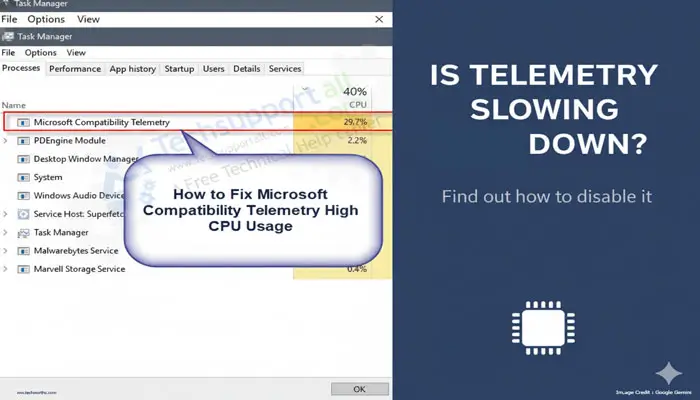
If you’ve ever opened your Task Manager in Windows 10 (or Windows 11) and found that a process named Microsoft Compatibility Telemetry (often associated with CompatTelRunner.exe) was consuming a significant portion of your CPU or disk resources. If you’re experiencing this issue on your Windows 10 computer, you’re in the right place. We’ll explain why you’re experiencing this problem and provide step-by-step solutions to help you fix Microsoft Compatibility Telemetry high CPU usage or high disk usage issues and speed up your computer. Let’s now take a closer look at how to safely resolve this issue.
Read Also: What is Malware? Detection and Prevention.
What is Microsoft Compatibility Telemetry?
Microsoft Compatibility Telemetry is essentially a data collection service. It collects technical data about your device, system components, application performance, and how your hardware works with Windows. Microsoft uses this information to identify potential issues, fix bugs, and ensure smooth compatibility for future updates—a goal that’s theoretically noble.
Problems arise when this process sometimes decides to run unexpectedly or repeatedly, leading to excessive CPU usage and excessive disk usage. For users with older or slower hard disk drives (HDDs), this can often lead to catastrophic 100% disk usage, rendering the computer virtually unusable until the process is terminated or shut down. As many users discuss on the Microsoft Compatibility Telemetry Reddit threads, resource spikes are a major problem.
Click Ctrl-Alt-Del to open Task Manager, and you can see how many resources Microsoft Compatibility Telemetry is using as follows:
How to disable Microsoft Compatibility Telemetry permanently
If you’re bothered by persistent slowdowns, you can take steps to disable this service. Remember that disabling it will provide Microsoft with less data about potential bugs in your system, but it will significantly improve your computer’s performance.
Method 1: Using the Task Scheduler (Recommended for Windows 10/11)
This is the most common and effective way to permanently disable the primary function associated with the telemetry service.
- Open the Task Scheduler. You can search for “Task Scheduler” in the Windows start menu search bar or press Windows Key + R and type taskschd.msc then press enter key.
- In the left-hand pane, go to the following path as follows:
Task Scheduler Library → Microsoft → Windows → Application Experience
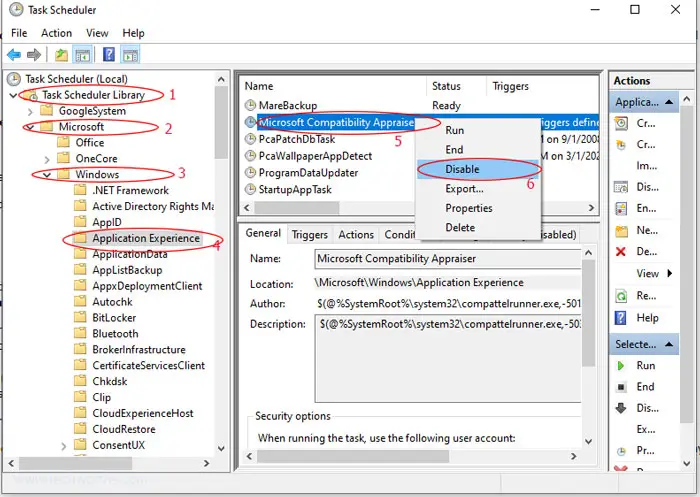
- Find the Microsoft Compatibility Appraiser task in the middle pane .
- Right-click on it option and select Disable.
- Then close the Task Scheduler window.
Method 2: Disable Microsoft Compatibility Telemetry via Local Group Policy Editor
The simplest way to resolve the issue is to disable Microsoft Compatibility Telemetry via the Group Policy Editor.
1 . Press the Windows logo key + R key, then the Run command window will opens.
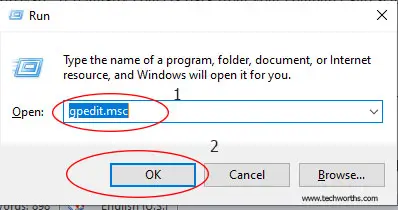
2. Type gpedit.msc and click OK, then Group Policy Editor windows opens.
3. In the left-hand pane go to path -“Computer Configuration > Administrative Templates > Windows Components > Data Collection and Preview Builds”, as follows:
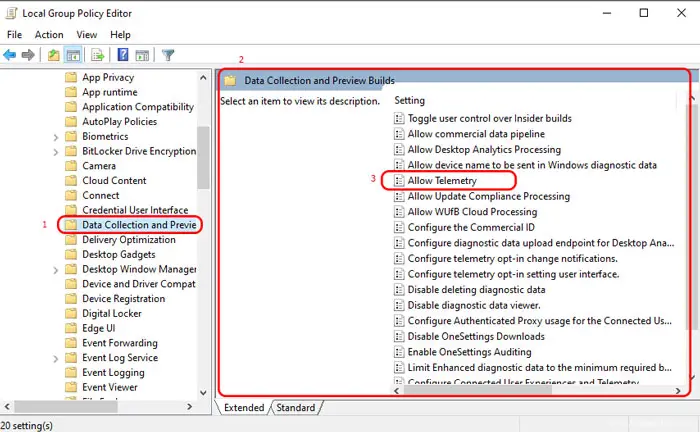
4. Select and double-click on Allow Telemetry on the right panel, as follows:
5. Select Disabled, then click OK to save the setting, as follows:
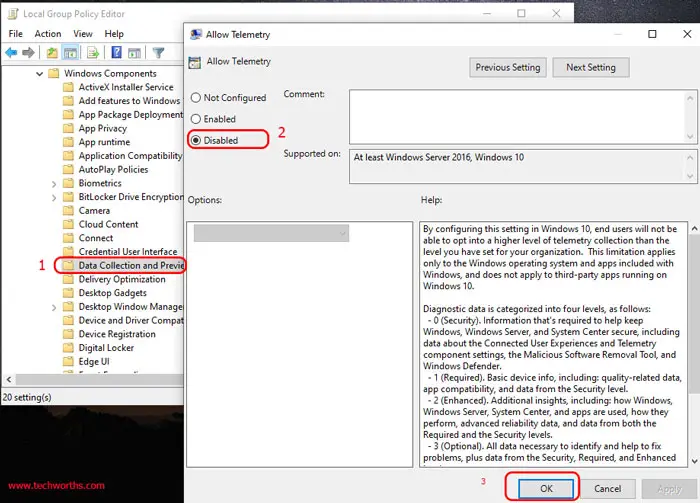
After completing the steps above, Microsoft Compatibility Telemetry will no longer work, and your computer will no longer slow down due to Microsoft Compatibility Telemetry.
In fact, there are other solutions to this problem, for example, you can use third-party software. However, disabling Microsoft Compatibility Telemetry using the Group Policy Editor is the easiest way.
Read Also: How to Fix Slow PC [For Free with 100% works]
Frequently Asked Questions (FAQs) about Microsoft Compatibility Telemetry Using High CPU and Disk
Q1. What is Microsoft Compatibility Telemetry?
A: Windows Compatibility Telemetry (CompatTelRunner.exe) is a service in Windows 10 that collects technical data related to the usage and performance of your computer and Windows 10 software. It regularly collects data from your computer and sends it to Microsoft to improve the user experience.
Q2. Does Windows telemetry slow down PC?
A: Yes, this can cause the PC to run very slowly. Especially on systems with slow storage devices (HDDs), the process of collecting and sending data—especially Microsoft Compatibility Telemetry high disk usage—can consume a lot of resources, causing noticeable lag or freezing..
Q3. Is Microsoft Telemetry needed?
A: Technically, no. While it provides Microsoft with valuable diagnostic data to improve Windows, it’s not essential to the core functionality or day-to-day operation of your existing Windows installation.
Q4. Is it safe to disable Microsoft compatibility telemetry?
A: Yes, it’s generally safe to disable Microsoft Compatibility Telemetry, especially if you’re experiencing high CPU usage during the process. Disabling it can improve system performance and privacy, but you’ll lose out on data that helps Microsoft improve Windows and troubleshoot compatibility issues.
Q5. How do I fix 100% CPU and disk usage?
A: Open the task manager and see the what process are consuming the high cpu and disk , then take the necessary actions against that process for fixing them.
Q6. Why is CompatTelRunner taking so much CPU?
A: CompatTelRunner is taking up too much CPU, which could possibly be caused by outdated Windows, corrupt system files, or a problem with the telemetry service collecting and sending too much data.
Q7. Why is my Microsoft compatibility telemetry using so much disk?
A: Microsoft Compatibility Telemetry can cause excessive disk usage because it is actively collecting and processing performance data, which can be worsened by outdated drivers, corrupted system files, or technical issues in the process.