Gmail to Outlook configuration: Setting up your Gmail account in Microsoft Outlook might help you streamline your email experience by allowing you to access all of your communications in one spot. Users can link their Gmail accounts to Microsoft Outlook. Employees can now manage several Gmail accounts from a single place, saving time and effort. What more? You can check your emails when offline, which is not possible with webmail such as Gmail.
Step 1: Prepare Your Gmail Account for Gmail to Outlook configuration
Before configuring outlook to send and receive Gmail mails, we need to enable mail protocols from the Gmail account. Most of the users forget this important setting in Gmail account to setup Gmail in outlook. So, first log in to your Gmail account and follow these steps–
a. Log in to Gmail
- Open your Gmail account on a web browser as like Google chrome.
b. Access Gmail Settings
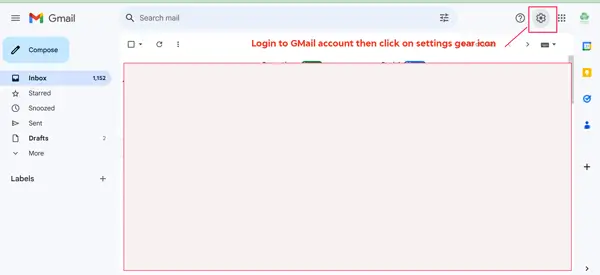
- Click the gear icon (⚙) in the top-right corner.
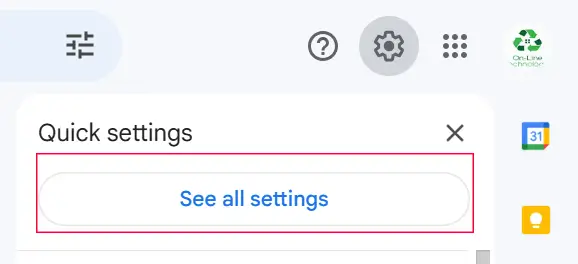
- Select “See All Settings” from the dropdown.
c. Enable POP and IMAP Access
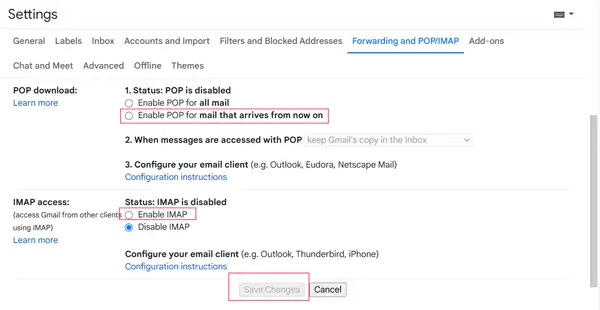
- Go to the Forwarding and POP/IMAP tab.
- Under POP Download, select “Enable POP for mail that arrives from now on”.
- Scroll to the IMAP Access section and make sure Enable IMAP is checked.
- Click on Save Changes.
d. Allow Access for Less Secure Apps
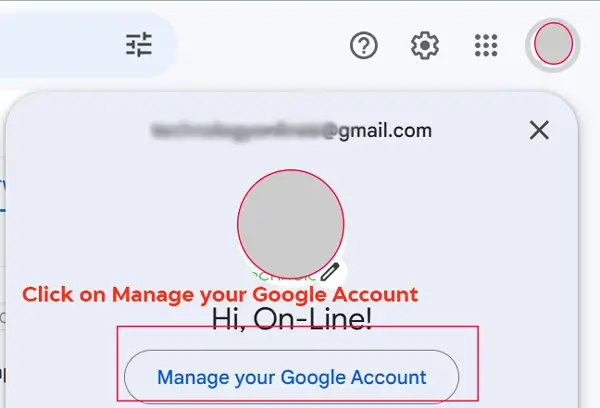
- Click on your profile picture icon.
- Then click on Manage your Google Account
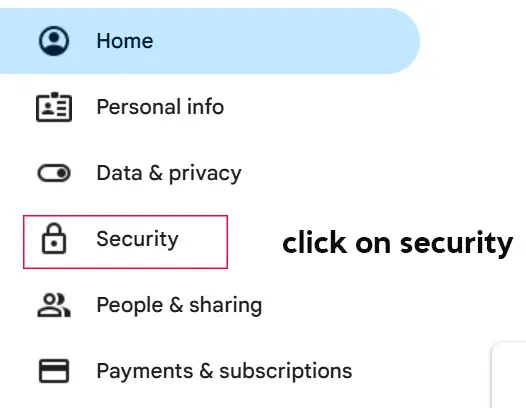
- Select Security from the menu.
- Enable Less Secure App Access.
Note: If you’ve set up 2-Step Verification, this option won’t appear. Instead, you’ll need to generate an App Password
Read Also: Step-by-Step Guide to Gmail password change or reset easily
Step 2: Set Up Gmail in Microsoft Outlook
Now that Gmail is ready for Gmail to Outlook configuration
1. Open Microsoft Outlook
- Open the Outlook app on your PC.
- Click File in the top-left corner, then choose Add Account.
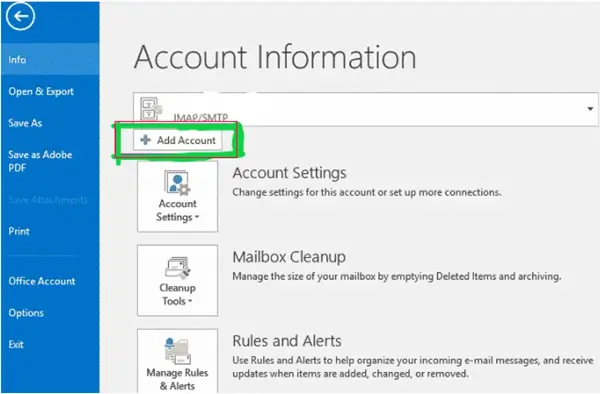
2. Choose Manual Setup
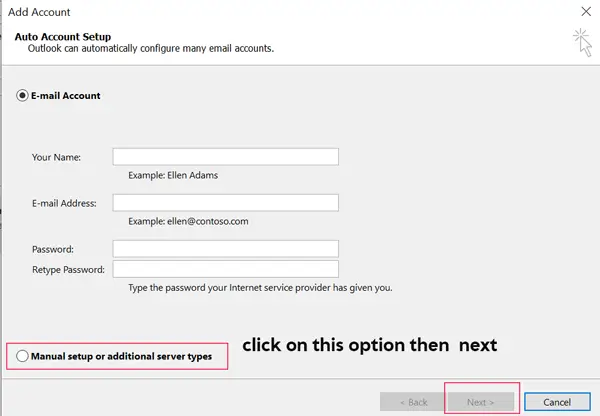
- In the Add Account window, select “Manual Setup or Additional Server Types”.
- Click Next to proceed.
3. Configure Account Details
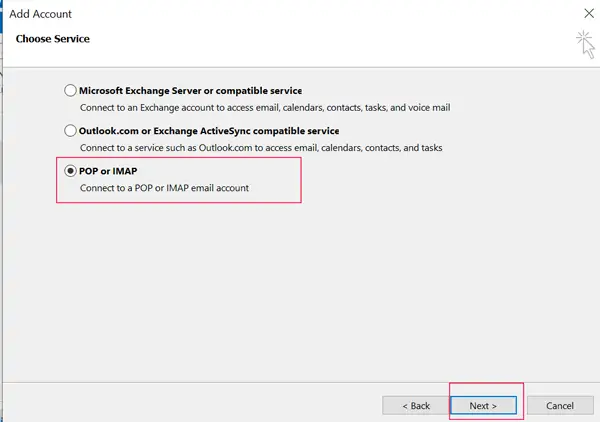
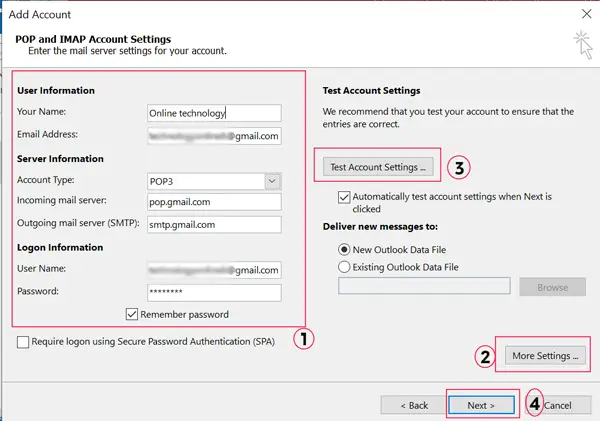
- Choose POP or IMAP as your account type and click Next button.
- Fill out the following information :
- Your Name: Enter your full name.
- Email Address: Your Gmail address (e.g., youremail@gmail.com).
- Account Type: Choose IMAP (recommended) or POP.
- Incoming Mail Server: imap.gmail.com (for IMAP) or pop.gmail.com (for POP).
- Outgoing Mail Server (SMTP): smtp.gmail.com.
- Username: Your Gmail address like xyz@gmail.com.
- Password: Your Gmail account password or App Password.
4. Adjust Advanced Settings
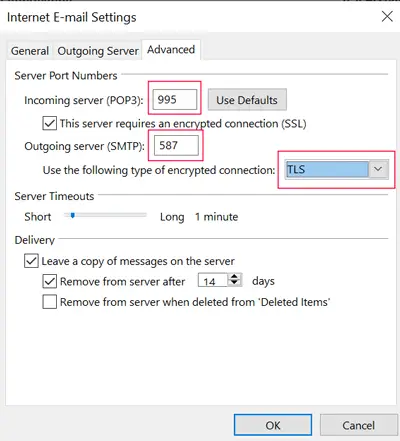
- Click More Settings in the lower-right side.
- Go to the Outgoing Server tab:
- Check “My outgoing server (SMTP) requires authentication”.
- Choose “Use the same settings as my incoming mail server”.
- Switch to the Advanced tab:
- For IMAP, set:
- Incoming Server: 993, Encryption: SSL.
- Outgoing Server: 587, Encryption: TLS.
- For POP, set:
- Incoming Server: 995, Encryption: SSL.
- Outgoing Server: 587, Encryption: TLS.
- For IMAP, set:
5. Test the Connection
- Click Next to let Outlook test the settings.
• If everything is right, you will receive a success message.
6. Complete Setup
- Click Finish and start using your Gmail in Outlook!
Read Also: Create and add a Professional Email Signature in Outlook
Conclusion:
By following the steps provided in this article, you can easily set up your account and have all of your emails organized in one location. Whether you’re using Outlook 2016, 2013, 2010, or the most recent version of Outlook 365, these steps will make it easy to get started.
Remember that enabling IMAP or POP in Gmail is essential, and selecting the appropriate server settings ensures a flawless connection. If you have any problems, double-check your settings and remember to generate an App Password if 2-Step Verification is enabled.
Once completed Gmail to Outlook configuration, you’ll be able to access your Gmail messages directly from Outlook, whether you’re using a desktop, laptop, or mobile device.
Quick Answers to Common Questions
IMAP or POP: Which Should I Use?
IMAP is the better choice for most users since it syncs your emails across all devices. POP downloads messages to your device and removes them from the server, which can be limiting.
What Are the Gmail IMAP and SMTP Settings?
IMAP Server: imap.gmail.com, Port: 993, Encryption: SSL.
SMTP Server: smtp.gmail.com, Port: 587, Encryption: TLS.
Why Is “Less Secure App Access” Missing?
If 2-Step Verification is enabled, this option is hidden. Use an App Password instead. Find it under your Google Account’s Security section.
How Can I Set Up Gmail in Older Versions of Outlook?
These steps also work for Outlook 2016, 2013, 2010, and even 2007, though some menu options might look slightly different.
How to configure Gmail to Outlook?
To connect a Gmail account to Outlook, do the following:
1. To add an account, open Outlook and select File, then Add Account.
2. Enter your Gmail email address and choose Connect.
3. If prompted, enter your Gmail account again.
4. Choose Next and enter your Gmail password.
5. Read the statement, then pick Allow.
6. Select Done.
7. Restart Outlook.
8. Look for your Gmail email address in the folder pane. Click here for complete guide
Is Gmail SMTP port 465 or 587?
On the device or in the app, enter smtp.gmail.com as the server address. For Port, input one of the following numbers: For SSL, enter 465. Enter 587 for TLS.
How to sync Gmail to Outlook?
In the Outlook app, select File > Add Account. On the Auto Account Setup page, input your name, Gmail address, and Gmail password (or app password), then select Next.
What are the IMAP settings for Gmail in Outlook?
Quick Reference Settings: – Type: IMAP
Incoming server: imap.gmail.com.
Port: 993. Encryption type: SSL. Outgoing server: smtp.gmail.com.