Your Google Account password is used to access many Google products, like Gmail and YouTube.To secure your Google Account or your Gmail password change, it’s essential to know how to change or reset it. Learn how to easily manage your Gmail password to keep your account safe. Whether you’ve forgotten your current password or simply want to improve your account security, this article will guide you through the steps.
1. How do I change my Google Account password?
Gmail Password change on computer:
- Open your Google Account. You might have to sign in.
- In the top left corner, click Security.
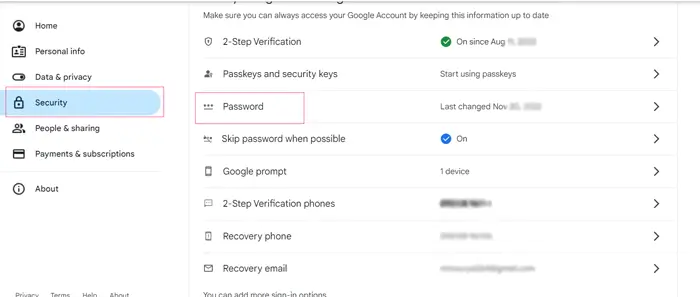
- Under “How you sign in to Google,” click Password. You may need to sign in again.
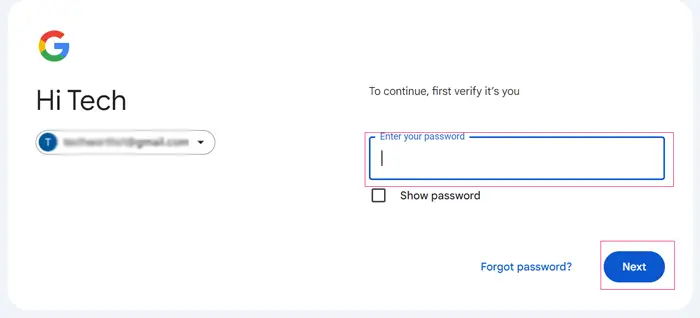
- Enter your new password and select Change Password.
- By using this method, your google account password will change.
Gmail password change on Android phone:
- Go to your device’s Settings app and click Google
Manage your Google Account.
- Go to the top and select Security.
- Tap Password under “How you Sign In to Google.” You might have to sign in.
- Enter your new password, and first letter should not be in case sensitive, then tap Change Password.
- By using this method, your google account password will change in android phone.
Gmail password change on iPhone and iPad:
- Open the Gmail app on your iPhone or iPad.
- Tap your profile picture or Google Account icon in the top right corner. If you don’t use Gmail, visit myaccount.google.com.
- Go to the top and select Personal Info.
- Under “Basic info,” select Password.
- Enter your new password, and first letter should not be in case sensitive, then tap Change Password.
- By using this method, your Google account password will change in iPhone or iPad.
Read Also: Create and add a Professional Email Signature in Outlook
2. How do I reset my Google Account password?
Reset Google Account password on computer:
- Visit https://accounts.google.com/ from your computer. Then go to Google Account.
- Enter your email or phone number, then press next.
- Instead of entering the password, tap on Forgot password.
- You’ll be asked some questions to confirm it’s your account.
- Follow on screen instructions and choose a password that you haven’t already used with this account.
- Reset the Google account password.
Reset Google Account password on android Phone, iPhone and iPad:
- Click here to recover or reset your password.
- Enter your email or phone number, then press next.
- Instead of entering the password, tap on Forgot password.
- You’ll be asked some questions to confirm it’s your account.
- Follow on screen instructions and choose a password that you haven’t already used with this account.
- Reset the Google account password.
Read Also: How to Use SFC and DISM Scan to Repair Windows 10
Conclusion
You may simply change your Gmail password by following the instructions in this article, which will protect your data and personal information. It’s a good idea to regularly change your password in order to preserve account security, particularly if you suspect any unwanted access.
what is the difference between a Google account and a Gmail account ?
A Google Account grants you access to a variety of Google services, including Google Drive, YouTube, and Google Calendar, with any email address. A Gmail account, on the other hand, is a Google account that only uses Google’s email service, and it comes with an email address that ends in @gmail.
In summary, all Gmail accounts are Google accounts, but not all Google Accounts are Gmail accounts.